Teams Coworker (Iris) Onboarding
This guide is for IT administrators who need to install Iris, the Autena coworker for Microsoft Teams, in their tenant and give the right people access.
Overview
Iris is a Autena app that your analysts chat with inside Microsoft Teams. It answers questions about a quote, surfaces drafts for approval, and can start a direct message on its own (a proactive nudge) when there is something to act on.
Getting an analyst up and running takes two things, both done from the Teams admin center:
- Add the app: upload the Iris app package so it exists in your tenant.
- Give an analyst access: make Iris available to them and install it for them, then have them sign in to Teams once.
Note: This is separate from granting Autena access to your mailboxes. For that, see Microsoft 365 Email. The two are independent, so you can do them in either order.
Prerequisites
- A Teams Administrator (or Global Administrator) role, with access to the Teams admin center.
- The Iris app package: a
.zip(app manifest and icons) that the Autena team sends you. - Custom apps enabled for your tenant: in Manage apps → Actions → Org-wide app settings, turn custom apps On. This lets you upload Iris and make it available to users.
- The Entra object ID of each analyst who should use Iris (Entra admin center → Users → the user → Object ID). You will send these to Autena in the last step.
Step 1: Add the Iris App
Go to Manage apps in the Teams admin center and click Actions → Upload new app. Choose the .zip the Autena team sent you and confirm.
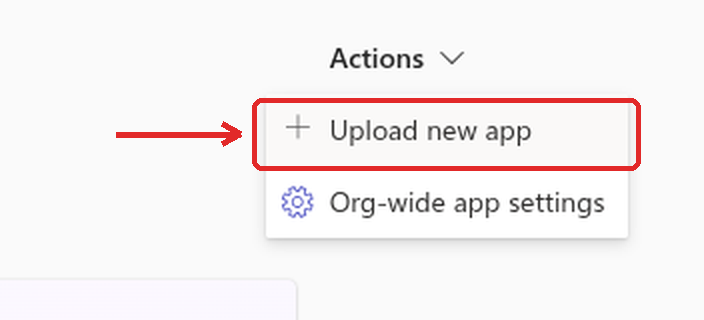
Open the uploaded Iris app and confirm its App status is not blocked.
Important: Uploading Iris only puts it in your tenant. It does not make it available to anyone or install it yet; that is Step 2.
Step 2: Give an Analyst Access
Open the Iris app from Manage apps. On the app's Users and groups tab, a dropdown lets you manage two separate things: Availability (who is allowed to have Iris) and Installs (who gets Iris preinstalled). Do both.
Make Iris Available
- On Users and groups, set the dropdown to Availability, then click Edit availability.
- Choose Everyone or Specific users or groups and add your analyst group. This is what lets those users have Iris.

Install Iris for the Analyst
- Set the same dropdown to Installs, then click Edit installs.
- Add the analyst (or a group). This preinstalls Iris for them, so it shows up in Teams without the user having to search for it.
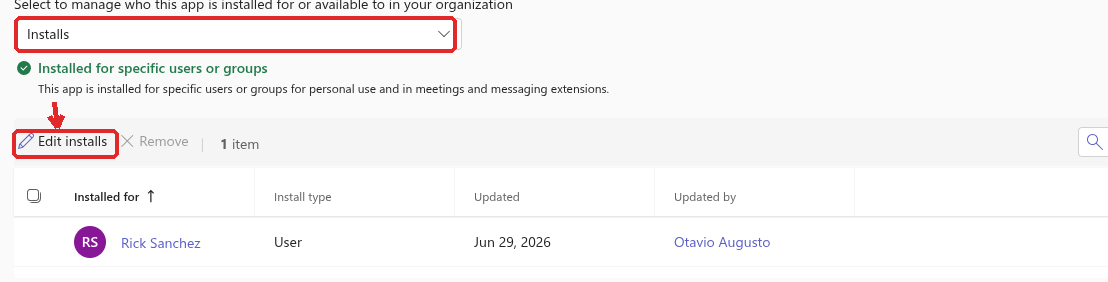
Each install shows an Install type (User or Group). Availability alone does not install the app; the install is what puts Iris in the analyst's Teams.
Optional: Pin Iris to the App Bar
If you want Iris pinned in the analyst's Teams rail, use an app setup policy: + Add a policy, add Iris under its pinned apps, and assign it to your analyst group. This only pins the app; the install itself is done above.

Step 3: Provision the Install
After Step 2, the analyst must sign in to Microsoft Teams at least once (desktop or web) for the install to take effect. That first sign-in is what provisions Iris for them: the admin action records the intent, and Teams completes it on the user's next sync. This is usually quick but can take a few hours.
The analyst does not need to message Iris first. They only need to be signed in to Teams.
Step 4: Verify
- The analyst should see Iris in their Teams app list, and can open a chat with it.
- If Iris is not there yet, allow for the sync window in Step 3 before troubleshooting.
Step 5: Send Autena the Analyst Details
Once the analyst can see Iris, send Autena support the details so we can turn on proactive messaging for them:
- Your Microsoft Entra tenant ID: the GUID from the Entra admin center Overview under Tenant ID.
- The Entra object ID of every analyst who should use Iris (from the Prerequisites step). Autena enrolls each one on our side.
Autena confirms when Iris can reach each analyst proactively.
Managing Access Over Time
Add an analyst
- Manage apps → Iris → Users and groups → Installs → Edit installs → add the user. Make sure Availability also covers them.
- Then send Autena the new analyst's object ID (Step 5).
Remove an analyst
- Manage apps → Iris → Users and groups → Installs → select the user → Remove.
Review who has it
Manage apps → Iris → Users and groups → Installs lists everyone Iris is installed for and their install type.
Troubleshooting
| Symptom | Cause | Fix |
|---|---|---|
| Iris never messages the analyst, or Autena tells you it can't reach them | Iris is available but not installed for that user, or the user has not signed in to Teams yet | Confirm the user is under Installs (Edit installs), then have them sign in to Teams once (Step 3). It takes effect on the user's next sync, up to a few hours |
| Analyst can't find or add Iris in Teams | Availability does not include them | Set Availability to Everyone, or add their group (Step 2) |
| You set the install but the user still doesn't have Iris | Availability excludes them, or Teams hasn't synced | Confirm Availability covers the user; allow up to 24 hours, then have them reopen Teams |